Use a password manager
Why this matters in today’s digital world
Your email, bank, employer portals, and shopping sites all live behind passwords. Meanwhile, breach databases grow every week: usernames and password hashes from old hacks get traded, cracked, and stuffed into bots that try the same password on thousands of sites. If you reuse even one password, a leak on a forum or a store you used once can become the key to your inbox—and from there, password resets can unravel everything else.
Phishing is no longer sloppy spelling in an email; it’s cloned login pages and urgent texts. Humans are bad at remembering dozens of long, unique secrets; we default to patterns and repeats. A password manager is the tool that closes that gap: one strong master password unlocks a vault of unique passwords you never have to memorize.
This isn’t paranoia—it’s baseline hygiene. The cost of not using one is asymmetric: one mistake can cost months of recovery, identity hassle, or money. Compliance here means fewer “I got hacked” weekends.
What to look for (any reputable manager)
- One master password – You only remember one; the app remembers the rest.
- Strong, unique passwords – Generate long random passwords so one site breach doesn’t cascade.
- Encryption (zero-knowledge) – Your vault is encrypted before it leaves your device; the company shouldn’t be able to read your passwords without your master password.
- Sync across devices – Same vault on phone, laptop, and browser.
The rest of this guide focuses on Bitwarden, which has a capable free tier and works in the browser without paying.
Bitwarden Free: what you get (no credit card)
Bitwarden’s free personal plan is enough for most people:
| Feature | Free tier |
|---|---|
| Passwords & logins | Unlimited items in your vault |
| Devices | Unlimited devices (phone, tablet, browsers, desktop) |
| Sync | Same vault everywhere, automatic |
| Generator | Strong random passwords (and usernames) |
| Vault types | Logins, secure notes, cards, identities |
| Encryption | End-to-end encrypted vault (you hold the keys via your master password) |
| 2FA on your Bitwarden account | Supported (authenticator app or security key—protects the vault itself) |
| Passkeys | Store and use passkeys in supported clients |
Paid tiers add extras (e.g. built-in TOTP codes for other sites, more sharing polish, attachments). You do not need Premium to start or to be dramatically safer than password reuse.
Step-by-step: set up Bitwarden on the web (free)
Do this on a private computer or trusted browser the first time—not on a public PC.
1. Open Bitwarden and start signup
- In your browser, go to bitwarden.com and choose Get Started, or open bitwarden.com/go/start-free/ directly.
- On Create your free Bitwarden account, enter your email, pick bitwarden.com or bitwarden.eu (whichever matches where you want data hosted), then click Sign Up.
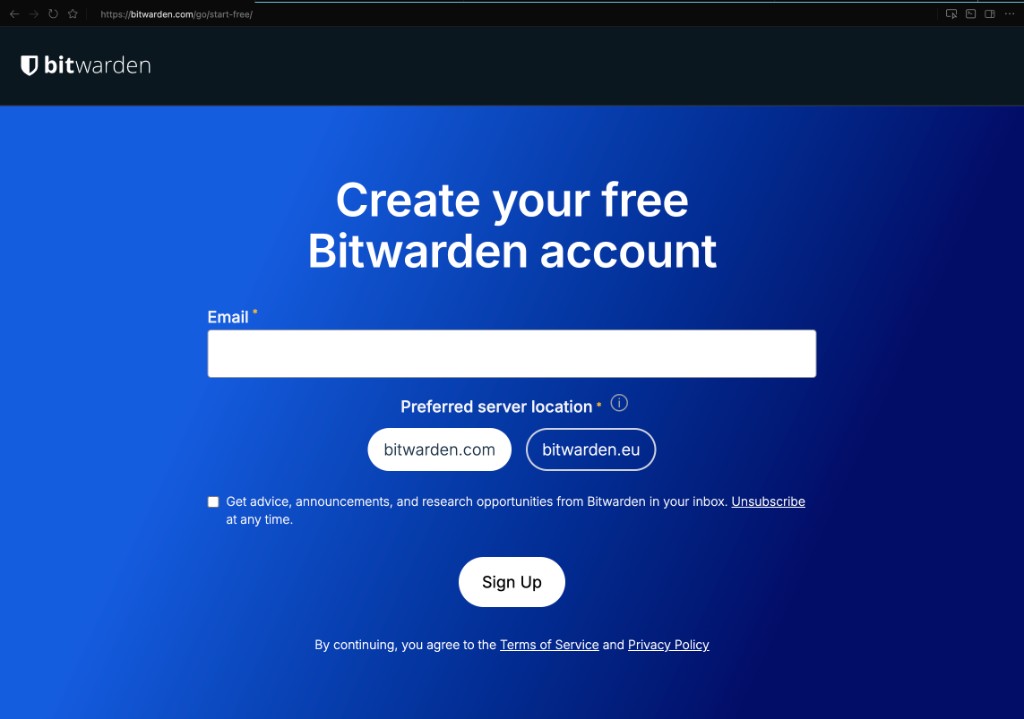 Create your free Bitwarden account: email and preferred server region
2. Create your account (master password)
On the next screens you’ll set:
- Master password – This is the only password you must remember. Make it long (think passphrase: several random words). Nobody at Bitwarden can reset this for you if you forget it—you’ll lose access to the vault.
- Master password (again) – Confirmation.
- Password hint (optional) – Something that jogs your memory only, not the password itself.
Accept the terms and finish creating the account.
3. Verify your email
Check your inbox for Bitwarden’s verification message and click the link. Until you verify, some actions may be limited.
4. Log in to the web vault
- Go to vault.bitwarden.com (or use Log in from bitwarden.com).
- Enter your email and master password.
You should see an empty (or nearly empty) vault.
5. Turn on two-step login for your Bitwarden account
Protect the vault that holds everything else:
- In the web vault, open Settings (gear or profile menu—UI may vary slightly).
- Find Two-step login / 2FA.
- Enable an option you’ll actually use—authenticator app (Google Authenticator, Authy, etc.) or a security key if you have one.
- Save recovery codes somewhere offline (print or store in a safe place). If you lose your 2FA device, these help you back in.
6. Add your first login manually
- Click New → Login (or equivalent).
- Enter Name (e.g. “Gmail”), Username, URI (e.g.
https://mail.google.com), and Password. - For new passwords, use Generate password (length 20+ is reasonable for most sites).
- Save.
Repeat for email, bank, and work first—highest impact.
Open the Generator from the vault or extension to create random passwords for sites (length 20+ is a good default) or a passphrase (several words—great for memorizing only your master password). Bitwarden suggests 6+ words for a strong passphrase.
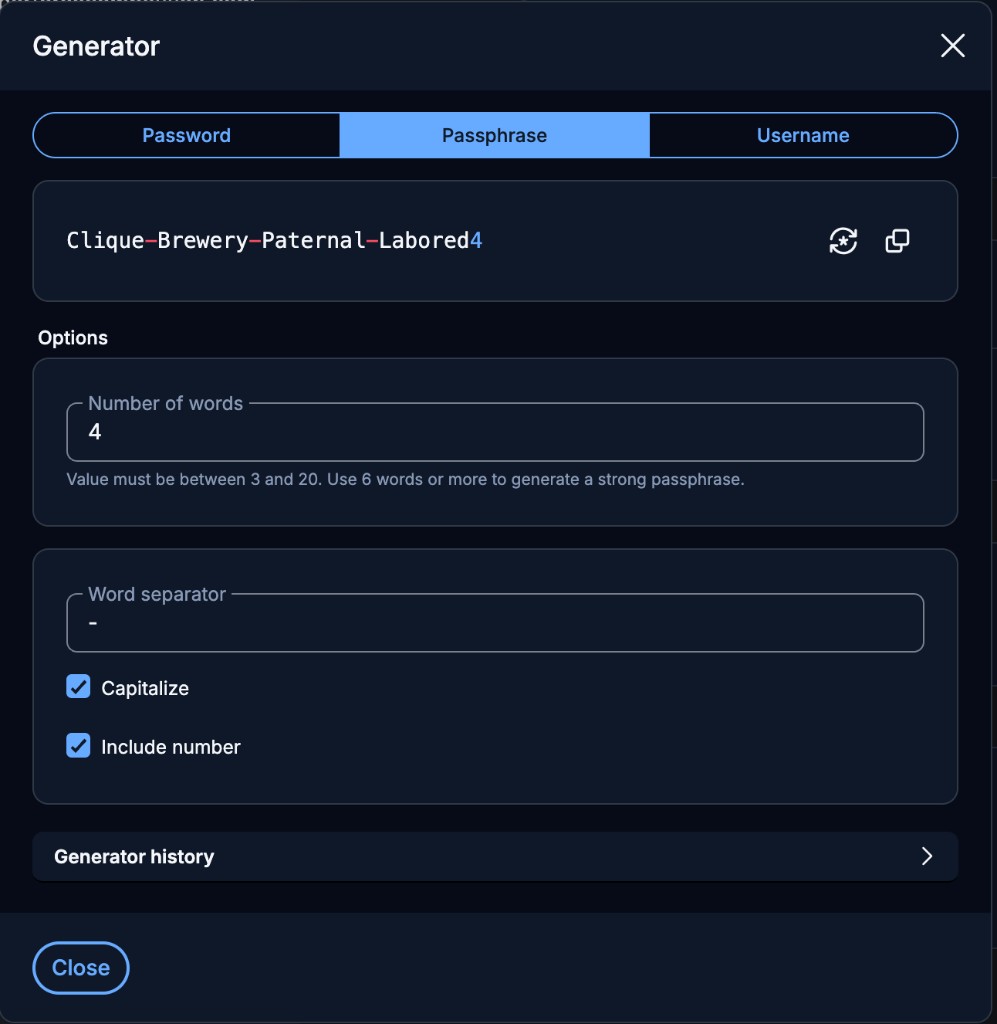 Bitwarden Generator: Password, Passphrase, and Username tabs; passphrase options (word count, separator, capitalize, include number)
7. Install the browser extension (strongly recommended)
- From Bitwarden’s site or your browser’s extension store, install Bitwarden.
- Log in with the same email and master password.
- Pin the extension so you use it habitually.
Then on login pages you can autofill or copy credentials from the extension.
8. Optional: import passwords from a browser or anywhere
If you saved passwords in Chrome/Edge/Firefox, Bitwarden can import them so you’re not retyping everything. In the web vault use Tools → Import, choose your file format (match the app you exported from), then upload the file or paste its contents. After a successful import, delete exported files and consider removing saved passwords from the browser so you have one source of truth.
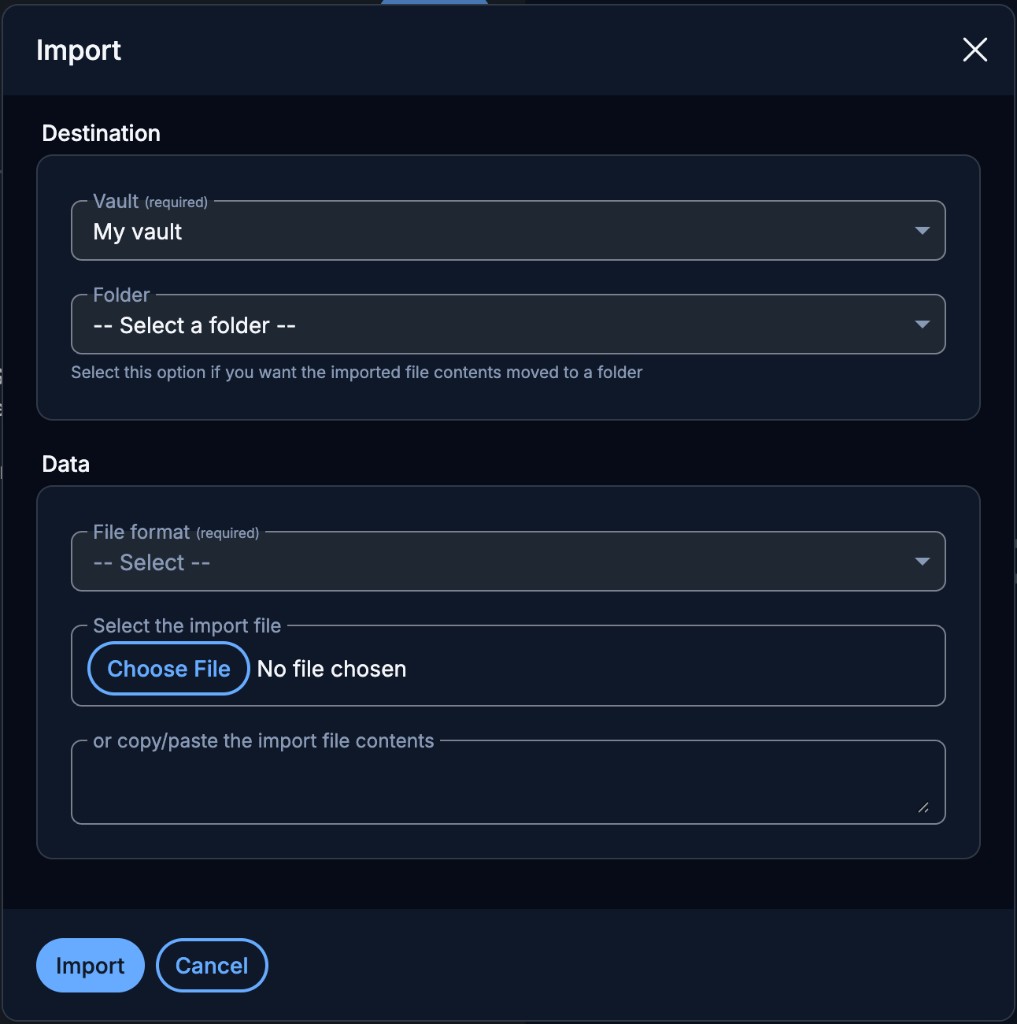 Bitwarden Import: destination vault, file format, and choose file or paste
You don’t have to move everything in one day. Start with critical accounts, then add sites as you log in.
Centralized management: one vault, every device
Centralized here means: one encrypted vault tied to your Bitwarden account. You don’t maintain separate password lists on your phone vs laptop—Bitwarden syncs changes securely. Add a password on the web vault; seconds later it can appear on your phone’s Bitwarden app (same account).
How to get it everywhere:
| Device | What to install |
|---|---|
| Computer (browser) | Bitwarden browser extension + optionally desktop app for system-wide unlock |
| Phone / tablet | Bitwarden app from the App Store or Google Play—sign in with the same email and master password |
| Another computer | Same: extension or web vault at vault.bitwarden.com |
Tips:
- Use the same account everywhere; don’t create a second “phone only” vault or you’ll drift out of sync.
- Keep 2FA on the Bitwarden account so a stolen phone password doesn’t instantly expose the vault (use biometrics on the app where available).
- On mobile, enable autofill in the Bitwarden app settings so apps and browsers can offer saved logins.
Closing thoughts
You need to do this. I'm not trying to be dramatic, but it is so very true that your identity can be stolen if enough of your accounts are compromised. Furthermore, you want to prevent stupid sh*t from happening: an upset coworker defacing your instagram, an ex seeking revenge, a sibling thinking they're funny, and the list goes on. There are bad actors out there, but there are also good people who need ot be kept honest. Sleep better at night knowing that it'll be a pain in the ass to hack you. And save yourself the daytime stress of trying to figure out if you left your password on a sticky note or on your notepad or in your notes app. This is an insecure and digitally unhygenic waste of your time.
Quick recap
- Reuse is the real risk—breaches and bots exploit it daily.
- Bitwarden Free gives unlimited passwords, unlimited devices, sync, and strong generators.
- Set up on the web, verify email, enable 2FA, add critical logins, then extension + mobile for the same vault everywhere.
- Master password: never forget it; store 2FA recovery codes safely.
You’re not aiming for perfection on day one—you’re aiming for unique passwords on the accounts that matter, then expanding until reuse is gone.