Always Wear A Mask! - Hide Your Email & Reduce Spam
DuckDuckGo Email Protection is a free, simple way to harden your digital life. An address you have used for years is hard to change—it is where newsletters, receipts, password resets, and important mail all land. A masked email (a Duck Address) lets you share something that is not your real inbox, cuts down on spam, and strips many hidden trackers before mail ever hits your primary mailbox.
1. What is an email mask—and why bother?
An email mask is an alias (for example, you@duck.com or a one-time address like xc7y53@duck.com) that forwards to your real email. Senders never see your true address unless you choose to reply from it.
Why it matters:
- Less exposure — If a site leaks its database, your real address is not in the breach for that signup.
- Trackers — Many marketing emails include invisible trackers (pixels, links) that report when and where you opened a message. Forwarding through a privacy-focused service can remove a lot of that before it reaches you.
- Spam control — You can give different sites different masks over time and abandon noisy ones.
DuckDuckGo describes the problem in plain language: most email can carry trackers; masking plus forwarding is an easy way to push back without changing your Gmail, Outlook, or work provider.
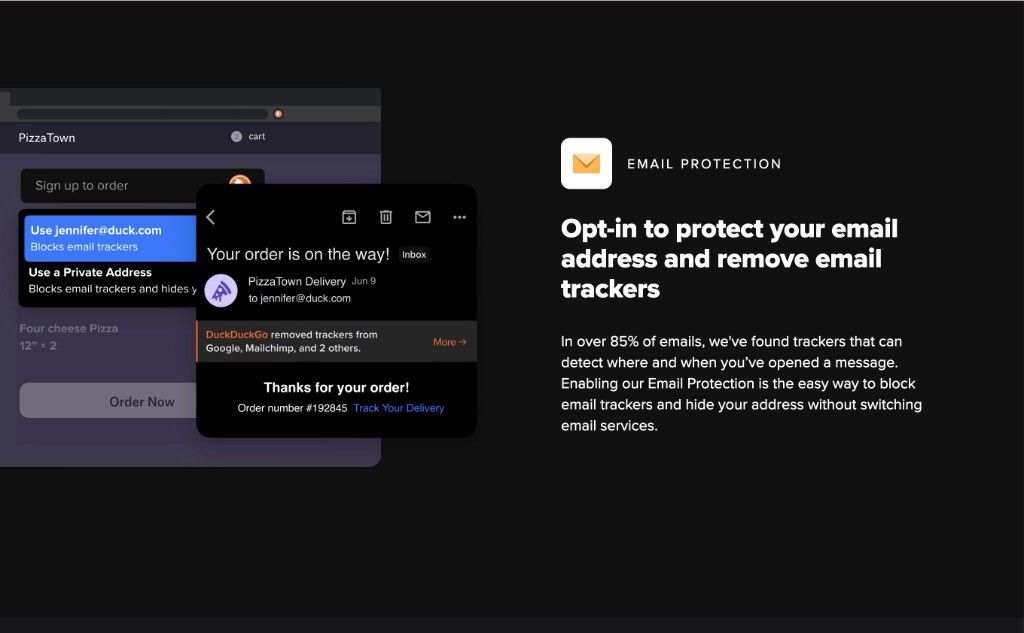 DuckDuckGo Email Protection: block trackers and hide your address without switching email providers
2. What is it used for?
Pretty much everything that asks for an email online:
- Shopping and order confirmations
- Newsletters and mailing lists
- Wi‑Fi portals, parking apps, event signups
- “Free PDF” gates and one-off downloads
- Any site you do not fully trust with your permanent address
Use your main Duck Address (like firstname@duck.com) when you want one stable alias. Use a random Private Duck Address when you suspect spam or resale of your data—each one still lands in the same inbox.
3. Set it up in about five minutes (free)
You will use DuckDuckGo’s Email Protection in a browser; screenshots below are in Chrome.. If you open the Email Protection page without the extension installed, you will see a prompt to add it first—that is expected.
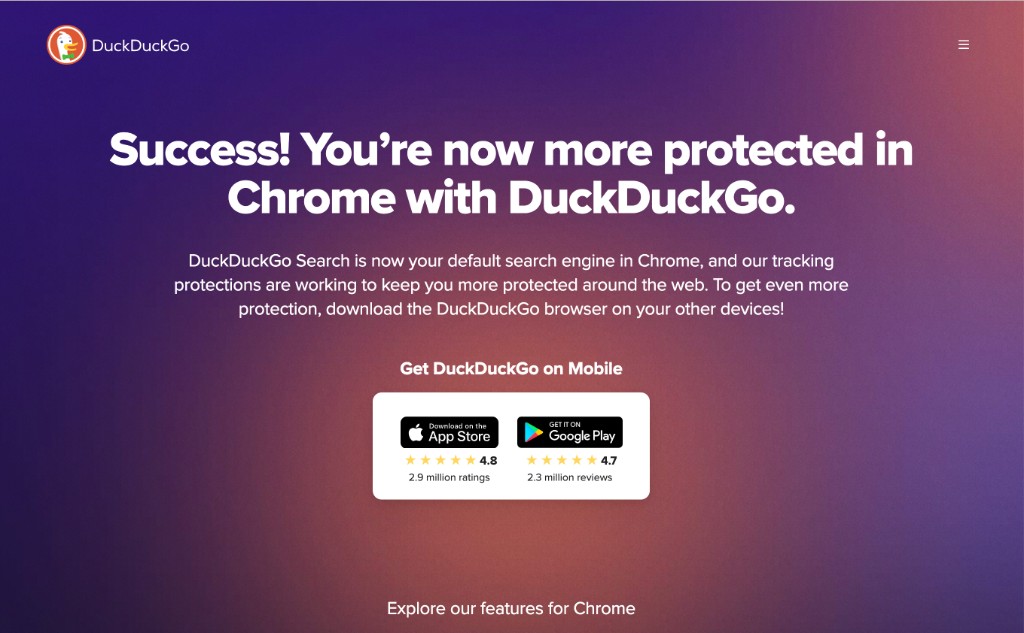 Email Protection requires the DuckDuckGo extension in this browser
Install the extension
-
Open the Chrome Web Store listing for DuckDuckGo Search & Tracker Protection (or search the store for “DuckDuckGo Search & Tracker Protection”).
-
Click Add to Chrome and confirm.
-
When the browser shows what the extension can do, review the permissions and click Add extension.
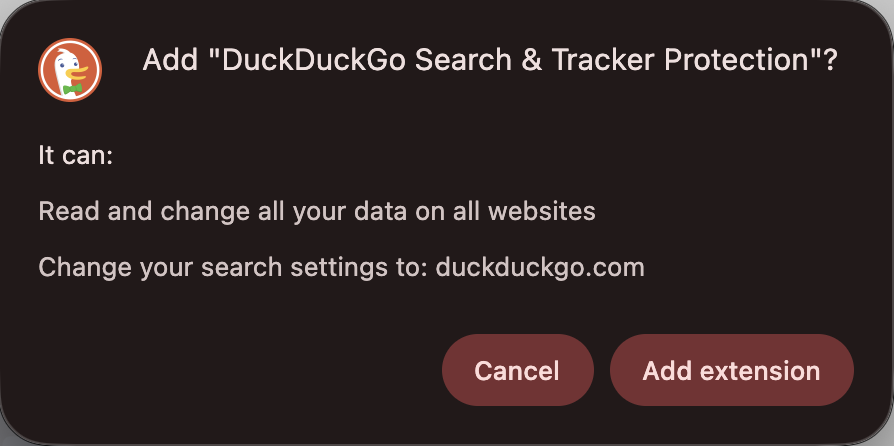 Browser prompt to add DuckDuckGo Search & Tracker Protection
- Pin the extension so it stays visible: open the extensions puzzle menu → find DuckDuckGo → click Pin.
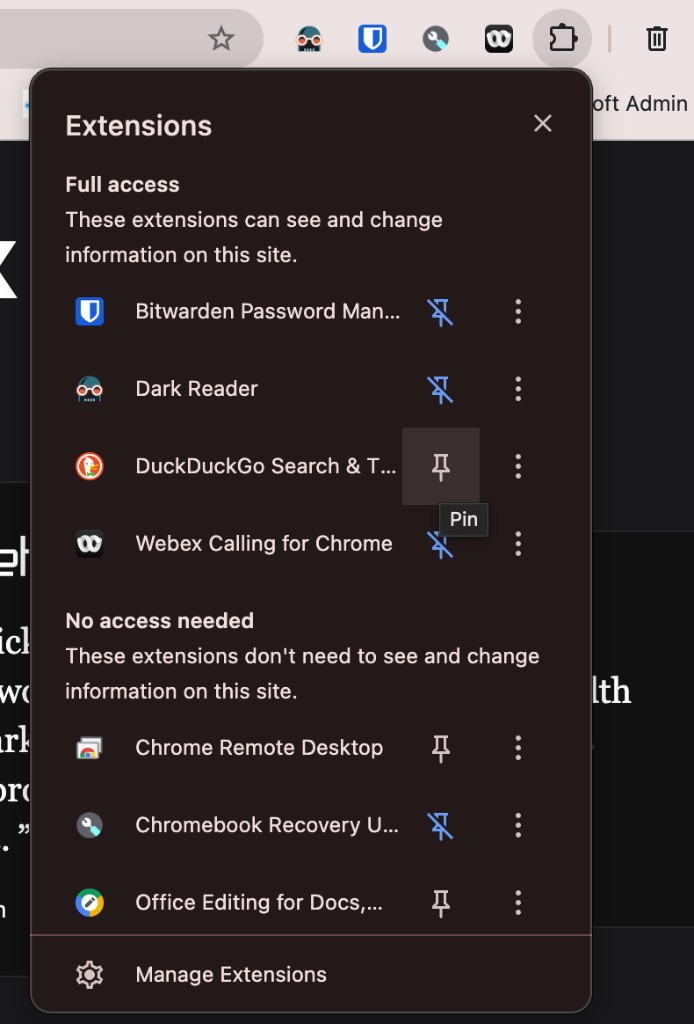 Pin DuckDuckGo to the toolbar from the Extensions menu
Turn on Email Protection
- Go to DuckDuckGo Email Protection (or the link DuckDuckGo shows after install).
- On the landing page, click Get Started.
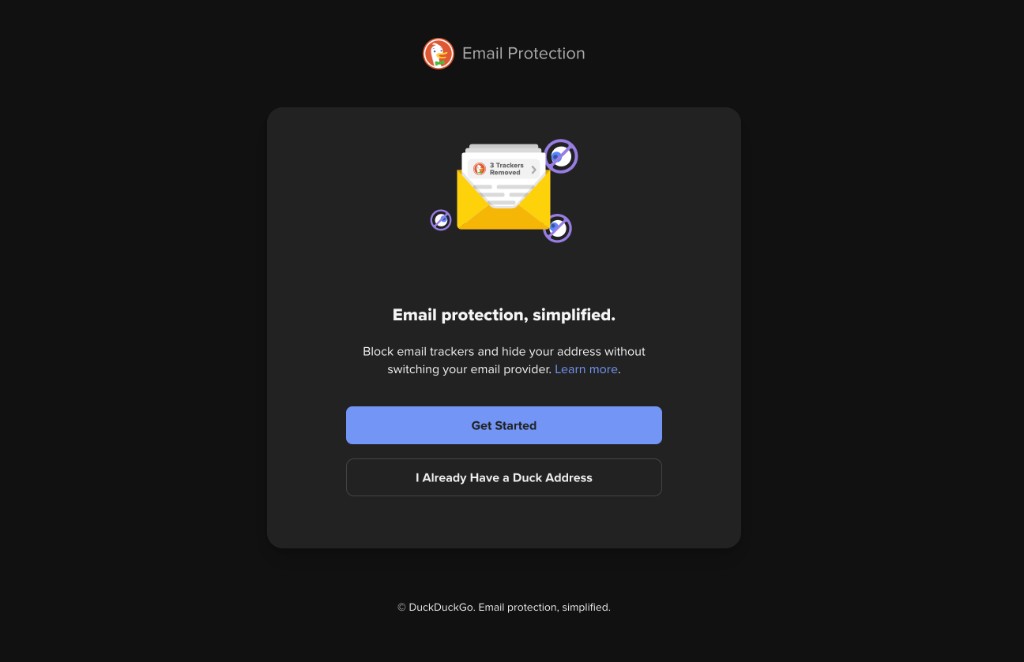 Email Protection landing: Get Started
- Read the short welcome screen and click Next.
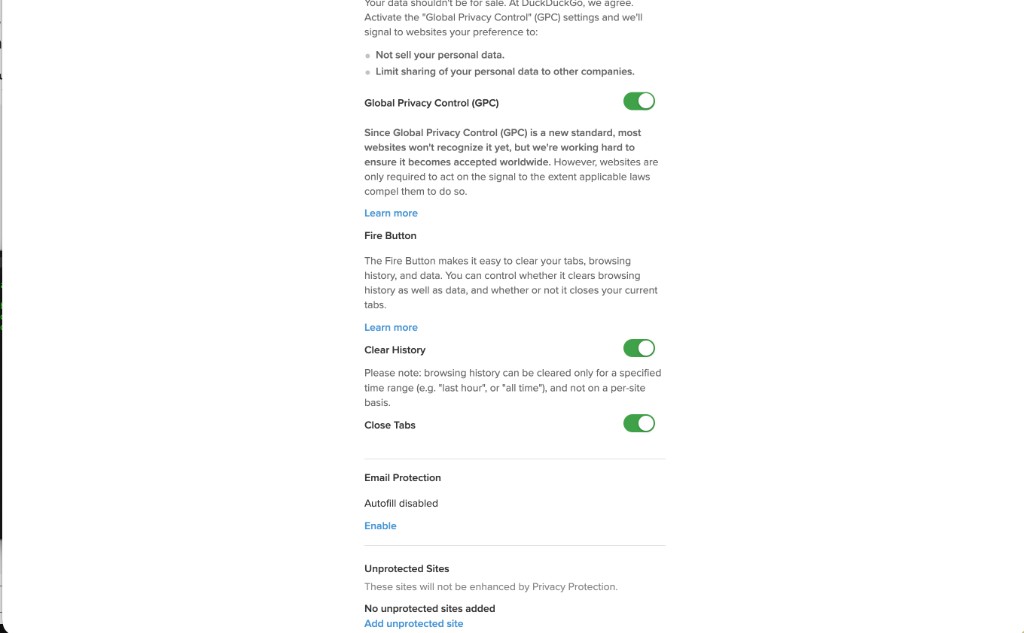 Welcome to Email Protection
- Review the Privacy Policy (notably: forwarding address + Duck Addresses stored; emails processed in memory, not written to disk for archiving). Click Next.
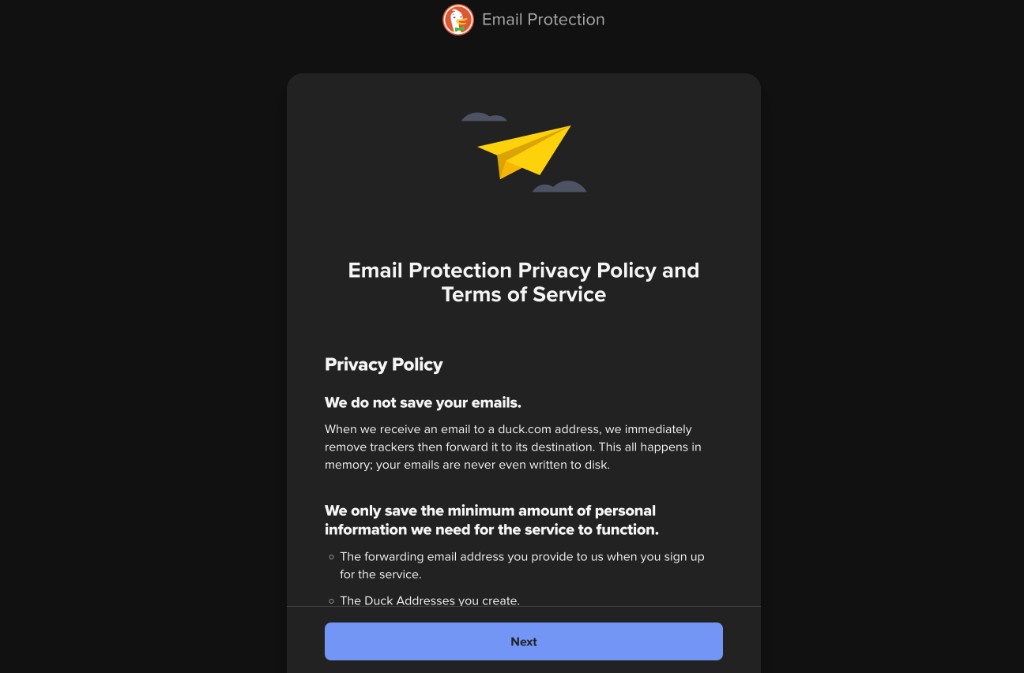 Email Protection privacy policy and terms summary
-
Enter the real email address where you want masked mail delivered (your normal inbox). DuckDuckGo will send a confirmation message.
-
Open that email and either click the verification link or paste the one-time passphrase into the open DuckDuckGo tab.
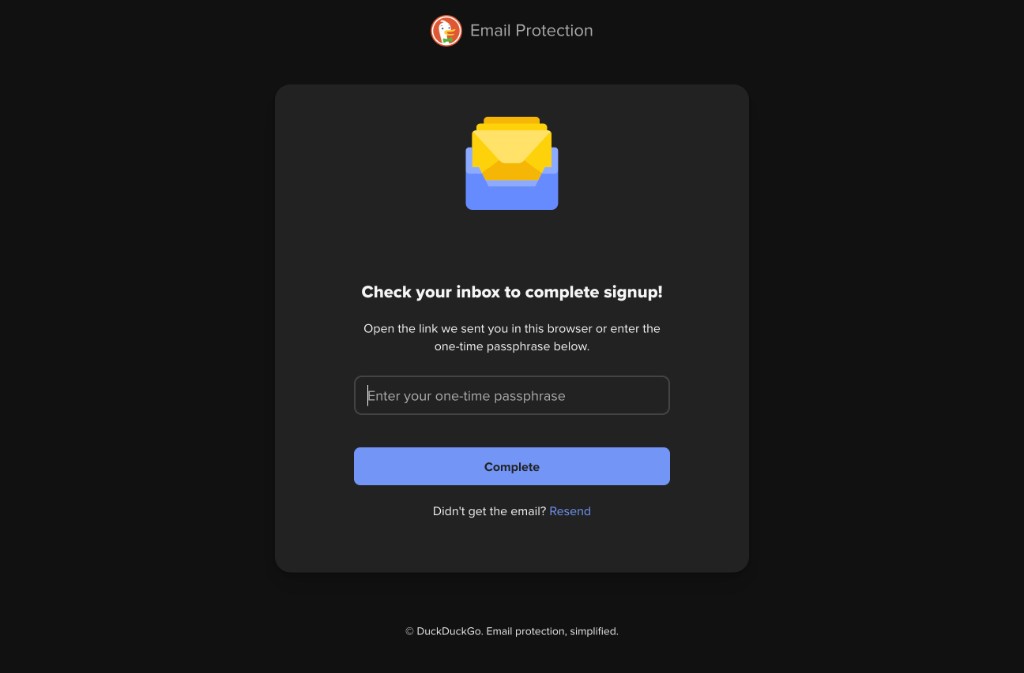 Check your inbox or enter the one-time passphrase to complete signup
-
Pick your personal
@duck.comaddress. When setup finishes, you will see a confirmation that mail to that address forwards to your real inbox with trackers removed. -
The extension may show a final screen: it can fill email fields with your Duck Address or a random Private Duck Address—handy on sketchy signup forms.
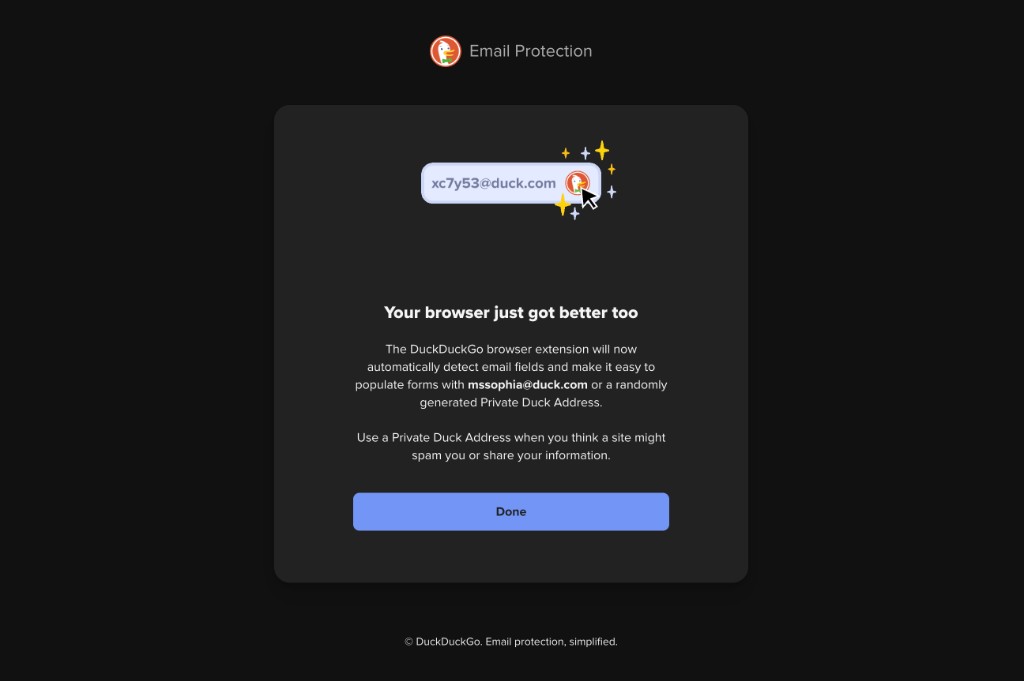 Extension: autofill with your Duck Address or a private address
4. Why add the DuckDuckGo extension? (You do not have to switch search engines)
The extension is separate from “using DuckDuckGo as your search engine,” though the installer may offer to set DuckDuckGo as default. You can keep Google, Bing, or anything else as your default search engine and still use the extension for:
- Tracker blocking on normal websites
- Email Protection autofill (masked addresses in forms)
- Optional tools like Global Privacy Control (GPC) and the Fire Button (quick data clear), depending on your settings
How DuckDuckGo pieces fit together:
| Piece | What it is |
|---|---|
| DuckDuckGo search | A privacy-oriented search engine on the web. |
| Browser extension | Tracker protection (and more) while you browse—works regardless of default search. |
| DuckDuckGo browser app | Full app on phone/desktop with protections built in. |
| Email Protection | Forwarding + masks + tracker stripping; in Chrome, tied to the extension (or use the DuckDuckGo browser elsewhere). |
Opening the extension on a site shows what it blocked and whether the connection is encrypted—useful proof that protection is active beyond search.
In extension settings, you can tune options such as GPC and (where available) Email Protection autofill.
5. Benefits of using DuckDuckGo as a search engine
If you do use DuckDuckGo for search, a common benefit is less profile-based ad targeting: they describe search ads as tied to what you searched for right now, not a dossier built from your whole browsing and purchase history. That is a different model from many large search providers.
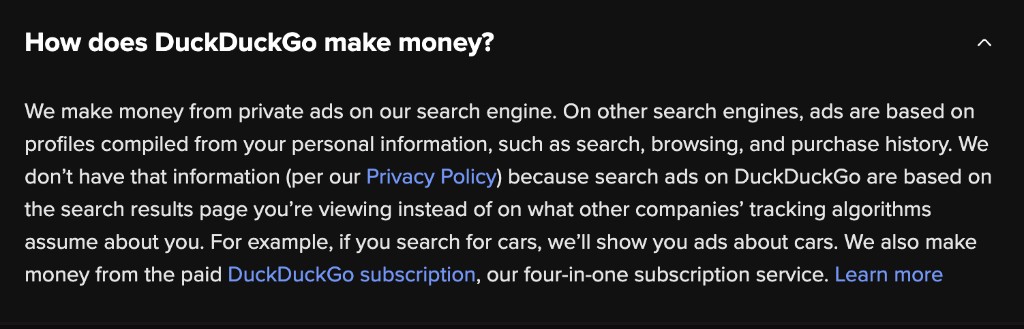 How DuckDuckGo makes money: contextual search ads, not personal profiles
They also earn revenue from optional paid offerings (e.g. subscription bundles)—the FAQ on their site explains this openly.
6. Downfalls and tradeoffs
To be honest:
- You are trusting a forwarder — Mail to
@duck.comtouches DuckDuckGo’s systems on the way to you. Read their policy and decide if that fits your threat model. - Not a full alias provider — This is forwarding, not a full mailbox at
@duck.com; replies and long-term identity are still anchored to your real provider. - Extension permissions — The Chromium extension needs broad access to block trackers and inject email suggestions; some orgs block extensions entirely.
- Service can change — Features, limits, and availability evolve; confirm current terms on DuckDuckGo’s site.
- Search quality — Some people prefer other engines for niche queries; that is a personal tradeoff, not a moral failing.
7. Closing thoughts
I really like DuckDuckGo beacause they offer both these services for FREE! And they're so easy to setup. Also, if you go to their site, they explain how they make money- this is important. Remember that if something is free, you are generally paying with your data, time, attention or worse.