Never Give Your Real Phone Number
Use Google Voice to hand out a separate number for signups, deliveries, and strangers—so spam and robocalls hit an alias, not your personal cell line. This walks through setup with screenshots and calls out important limits on how Voice can be verified. This is a free solution.
Why bother?
Your carrier number is the one factor resets, two-factor messages, and family emergencies ride on. Every time you type it into a form, you widen the leak surface: data breaches, resale lists, and aggressive telemarketers all love a “real” mobile that actually rings.
Google Voice (for personal use in supported regions) helps because it is:
- Spam reduction for your real line — You publish the Voice number; junk tends to pile up there first, and you can change how that number behaves without migrating your whole life to a new phone.
- Free for typical personal use — No monthly fee for the basic personal tier in the U.S., which is enough for many people who just need a second number and SMS.
- Reliable — It runs on Google’s infrastructure, syncs across the web and mobile apps, and keeps voicemail and texts in one place.
- More secure than spraying your private number — You expose an alias. Verification texts from Google even warn you not to share codes—treating phone numbers as sensitive secrets is the right habit.
This is not a perfect privacy shield (Google still operates the service), but it is a practical layer between the public internet and the number you use for banking and your kid’s school.
Step-by-step: get a Google Voice number
1. Open Google Voice and sign in
Go to the Google Voice product page and choose Sign in (top right or the main hero button). Use the Google account you want tied to Voice.
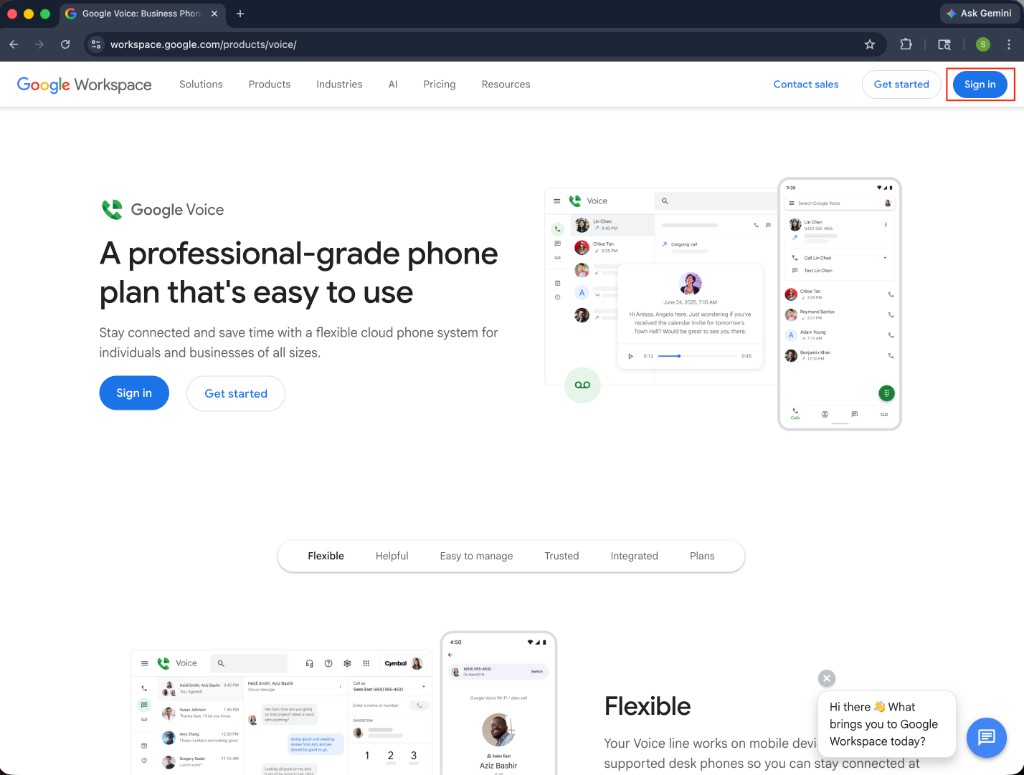 Google Voice product page: Sign in to begin
2. Choose your new Voice number
During onboarding (voice.google.com/.../onboarding), you will see Choose a phone number. You can take the suggested number or tap Pick a different number to search by area code or city. The page also reminds you that you need an existing U.S.-based mobile number to qualify—more on that in Caveats.
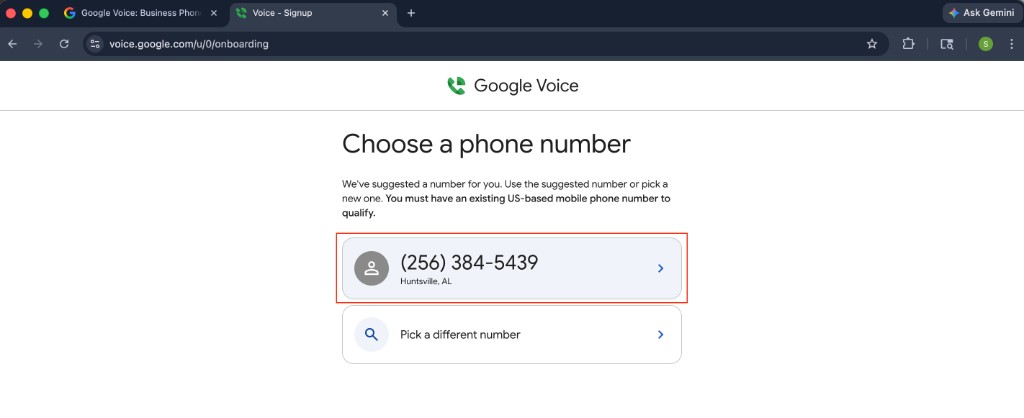 Choose a phone number: suggested number or pick a different one
3. Confirm selection and prepare to verify your real line
After you pick a number, Google shows that you selected it and explains that you must verify your existing phone number to finish setup. Choose Verify to continue.
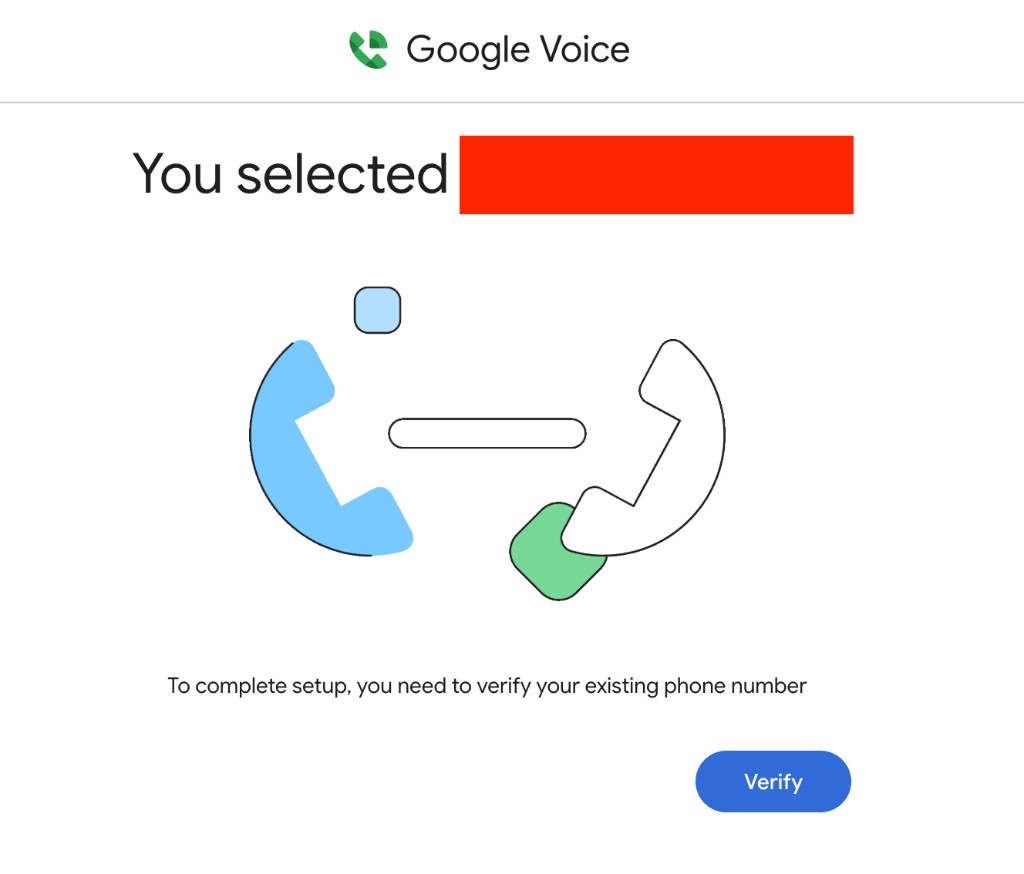 Verify your existing phone number to complete Google Voice setup
4. Link the number that will ring (your real cell)
In Enter a number to link, type the carrier mobile number where you want inbound Voice calls forwarded. Google will text a six-digit code to that line (or you can use verify by phone if offered). Tap Send code.
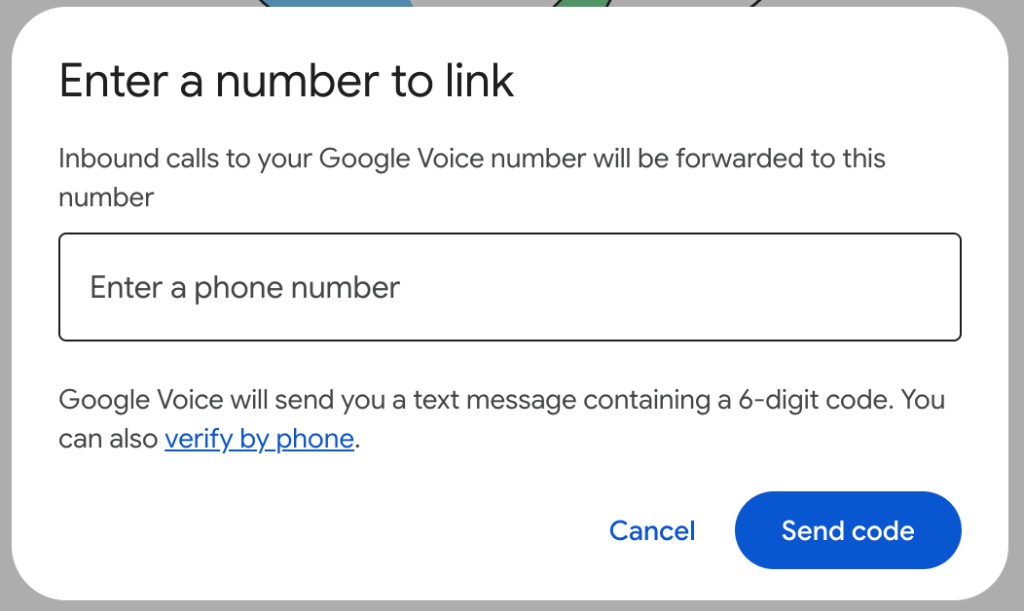 Enter a number to link: forward Voice calls to your real phone number
5. Enter the code from the text message
Check SMS from short code 22000 (or the sender Google shows). The message includes a six-digit code and a warning that anyone who asks for the code is running a scam—only enter it in the official Google Voice app or site. Type the digits into Enter the code you received, then tap Verify. You can use Resend code if needed.
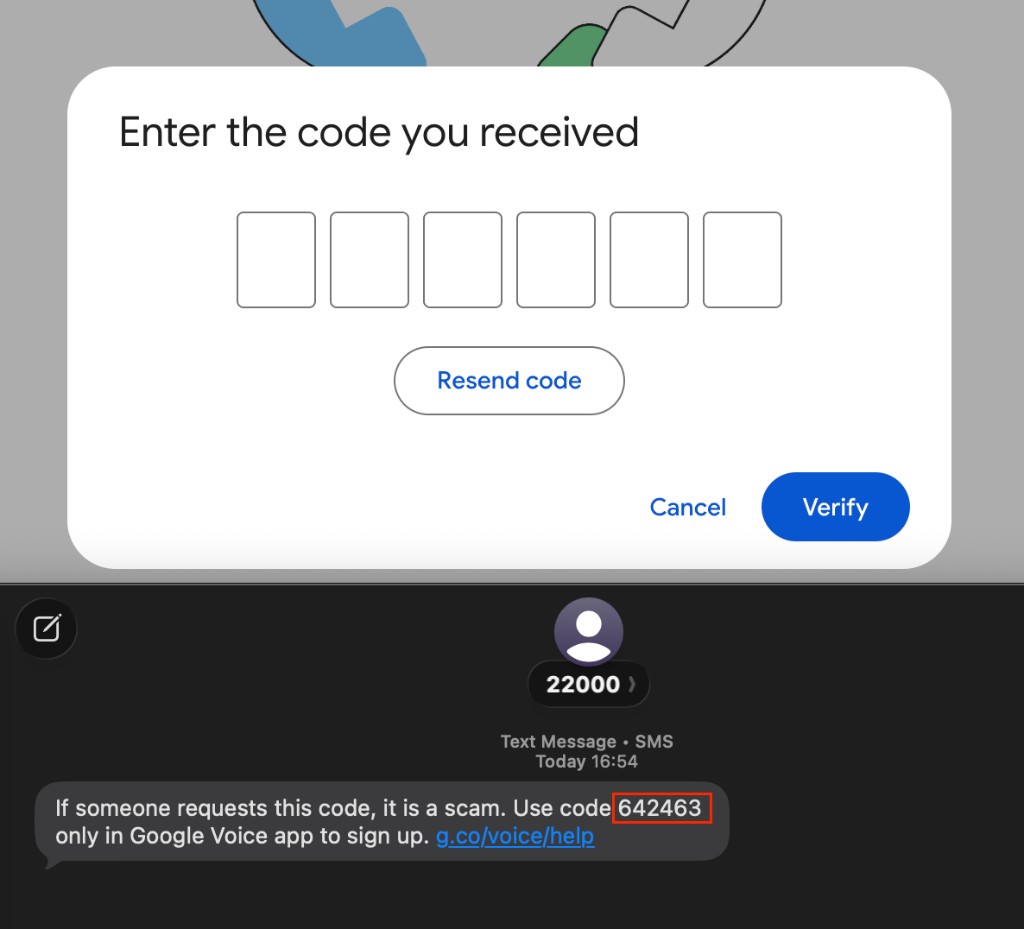 Enter the six-digit verification code; SMS from Google warns against sharing the code
After verification, configure forwarding, do-not-disturb, and voicemail in Voice settings. From here on, give people the Google Voice number unless you truly need them on your private line.
Caveats (read this before you rely on it)
- Voice is anchored to a real carrier mobile number. Google uses that line to prove you control a phone before it will activate Voice. You cannot complete this flow with “just” another VoIP app or softphone number in place of a standard mobile line—policy and verification are built around a real cellular number you can receive SMS or calls on.
- One Google Voice number per verified phone number (for personal accounts in the U.S.). You cannot stack multiple Voice numbers on the same verified mobile line under the normal rules. If you need more aliases, you need more underlying lines or a different product category (e.g., business plans)—not a second Voice personal number on the same verified cell.
- Region and eligibility matter. Availability, features, and pricing change; check Google’s current Voice documentation for your situation.
Closing thoughts
This will take you 5 minutes to setup- just do it. I also like the fact that you can send voicemails to your email easily using this number. Also, Google Voice is accessible via the app on mobile devices and in the browser on any device. So you can text from your Windows PC.
Next step: Combine a public-facing Voice number with carrier-level call filtering—screening, silence unknown callers, and block lists—so traffic that does reach your real line is easier to manage. A dedicated write-up on call filtering by carrier is planned; when it is live, link it here for readers who want to go deeper.